Reusable Processes in IFS BPA Workflows

Updated: Jul 27, 2025
IFS BPA Workflow Tutorial
IFS BPA Workflows often use common processes which are repeatable in different scenarios.
One valid way to design these processes would be to use the same task steps in multiple workflows, however this can lead to some longer-term issues with maintenance of the process and your workflows. If the common process needs to change, you will need to understand which workflows consume that process and update each according to your new requirements.
Thankfully, the Camunda workflow within IFS Cloud, allows us to call a sub workflow as part of the workflow design. This opens opportunities to have one version of a common sub-process, called from each main process.
Changes in the sub-process workflow are then available in the main processes automatically, meaning you only need to change the logic once.
Utilising this method could save hours of re-development of workflows.
To set this up, we will need two workflows to be created. As a simple scenario to understand the concepts, we will design a child workflow that simply adds two numbers together. The main process will call this sub-process and pass over two numbers and receive the result.
Create the Child Workflow (Sub-Process)
Create a new workflow, name this AddNumbers. This will be the child workflow that will execute our sub-process.
Within the workflow, add a TASK step. Select this step and open the Input/Output tab.

Create two Input Parameters and one Output Parameter
Input 1:
Local Variable Name:  Localn1
Variable Assignment Type: String or Expression
Variable Assignment Value: ${n1} - this is a value we will receive from the parent workflow.
Input 2:
Local Variable Name:  Localn2
Variable Assignment Type: String or Expression
Variable Assignment Value: ${n2} - this is a value we will receive from the parent workflow.
Output 1:
Local Variable Name:  outputresult1
Variable Assignment Type: String or Expression
Variable Assignment Value: ${Localn1 + Localn2} - this is returning the two values added together to the parent workflow.
ℹ️ The workflow is now expecting two variables to be passed into it, and it will return the sum of those two values back to the parent workflow.

Save and Publish the Workflow.
⚙️ It is a good idea to test your workflow to see the result. Use the 'n1' and 'n2' variable names in the Inspect BPA dialogue with some values and inspect the workflow. You will get the result in the 'outputresult1' parameter. In this case, 1+2 = 3.
ℹ️ The 'n1' and 'n2' values are the names of the "Variable Assignment Value" field on your inputs.

ℹ️ We now need to call this workflow from the parent workflow and pass the values for 'n1' and 'n2' and receive the 'outputresult1' value.
Create the Parent Workflow (Main Process)
Create a new workflow, name this CallAddNumbers. This will be the parent workflow, and it will only call the child workflow in this example. In reality, your process would contain more logic.
Add a new Step and change the type to Call Activity

In the right-hand side panel, set the following properties
Call Activity Type: BPMN
Called Element: AddNumbers - this is the sub-workflow name.
Binding: latest - this will ensure you always use the latest workflow version that is PUBLISHED for this sub-call. There are other options here to call specific versions, but this tutorial does not cover these options. 
Select the task step and then select the Variables tab
ℹ️ This is where you map the input and output variables between the parent and child workflow.

On the “In Mapping” section create two mappings.
In Mapping 1:
Type: Source Expression
Source Expression: ${number1} - This is the value or variable in the parent workflow to pass over
Target: n1 - This is the variable name that maps to the local variable in the child workflow
In Mapping 2:
Type: Source Expression
Source Expression: ${number2} - This is the value or variable in the parent workflow to pass over
Target: n2 - This is the variable name that maps to the local variable in the child workflow
On the “Out Mapping” section create one mapping
Out Mapping 1:
Type: Source Expression
Source Expression: ${outputresult1} - This is the process variable name that maps to the local variable calculation in the child workflow
Target: mainResult - This is the value or variable in the parent workflow bring the result into
ℹ️ The target values are not enclosed in ${}, they are plain text values.
⚙️ Test the parent workflow. Use the values you have defined as the Source Expression above in your In Mappings when using the Inspect BPA Window ('number1', 'number2' - without the ${} surrounding the value)

Check in the mainResult variable to ensure your two inputs have been calculated correctly.
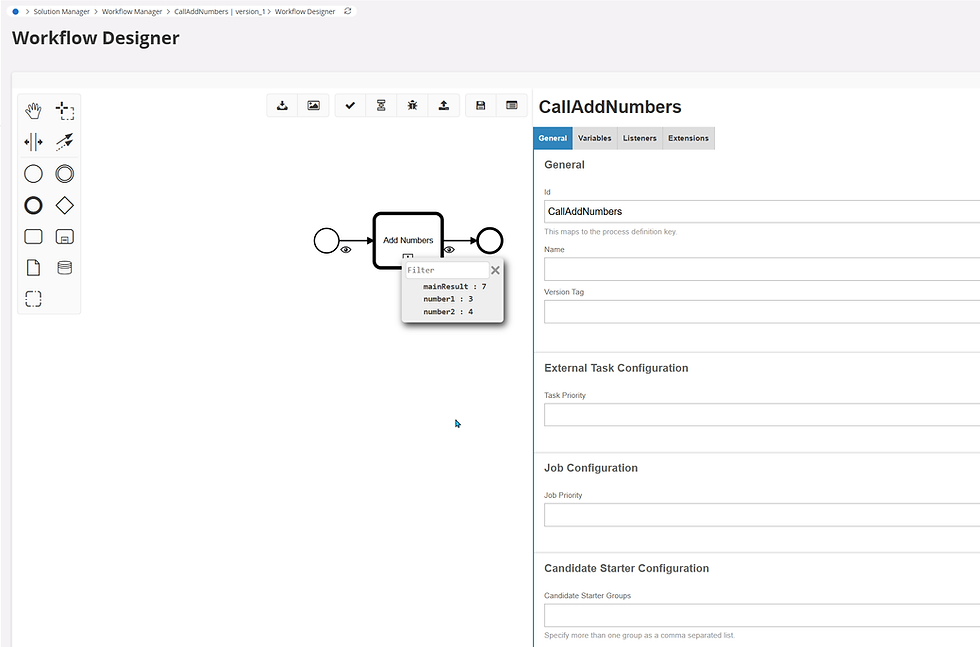
You have now created a parent and child workflow, passed over variables and received data back. This simple process can be expanded to suit a variety of scenarios.
Think about where this could be utilised within your solution, for example:
Sending Notifications or Emails to users from multiple processes, utilising the same email formatting - simply pass over the recipient and the message to the sub workflow.
Releasing of Purchase Requisitions, Purchase Orders, Customer Orders based on several scenarios.
If in a multi-company or multi-country solution, do you have main processes that are different that can utilise a common sub-process for part of each parent workflow?
Closing Notes and Next Steps
By using these steps, you should be able to create a set of simple workflows and pass information between them and have an understanding of some basic concepts to get you up and running. You can start thinking about how you can use these new skills to keep exploring workflows.
Techris Consulting has a lot of experience in the joys and pitfalls of workflow development. We now offer BPA workflow workshops, find out more here.
